Introduction
This guide describes how to use Copilot Chat and agents to automate coding tasks by breaking them into steps, using tools to read files, edit code, and run commands, and self-correcting when something goes wrong. You can also ask general questions about software development, or specific questions about the code in your project. For more information, see GitHub Copilot Chat について.
To learn how to use Copilot for agent-driven workflows in a desktop app, see GitHub Copilot アプリを使い始める.
Prerequisites
- Access to GitHub Copilot. 「GitHub Copilotについて」をご覧ください。
- 最新バージョンの Visual Studio Code。 Visual Studio Codeダウンロード ページを参照してください。
- GitHubでVisual Studio Codeにサインイン 認証に issue が発生した場合は、「GitHub Copilotに関する一般的な問題のトラブルシューティング」を参照してください。
組織GitHub Copilotまたはエンタープライズを介してにアクセスできる場合、組織の所有者GitHub Copilot Chatまたはエンタープライズ管理者がチャットを無効にしている場合、を使用することはできません。 「組織内のGitHub Copilotのポリシーと機能の管理」をご覧ください。
Chat modes
You can use Copilot Chat in the following modes:
- Ask mode: to get answers to coding questions and get Copilot to provide code suggestions.
- Agent mode: to get Copilot to autonomously accomplish a set task. See Using agent mode in your IDE.
- Plan mode: to get Copilot to create detailed implementation plans to ensure all requirements are met. See Using plan mode in your IDE.
To switch between modes, use the agents dropdown at the bottom of the chat view.
メモ
If you don’t see the Agent option in the mode selector, your enterprise or organization administrator may have disabled agent mode for your IDE.
Using ask mode
Ask mode is optimized for answering questions about your codebase, coding, and general technology concepts. Use ask mode when you want to understand how something works, explore ideas, or get help with coding tasks.
To use ask mode, select Ask from the agents dropdown at the bottom of the chat view, then submit a prompt as described below.
Submitting prompts
You can give the agent a high-level description of what you want to build and it gets to work. Each task runs inside an agent session, a persistent conversation you can track, pause, resume, or hand off to another agent.
-
To open the chat view, click the chat icon in the title bar of Visual Studio Code. If the chat icon is not displayed, right-click the title bar and make sure that Command Center is selected.
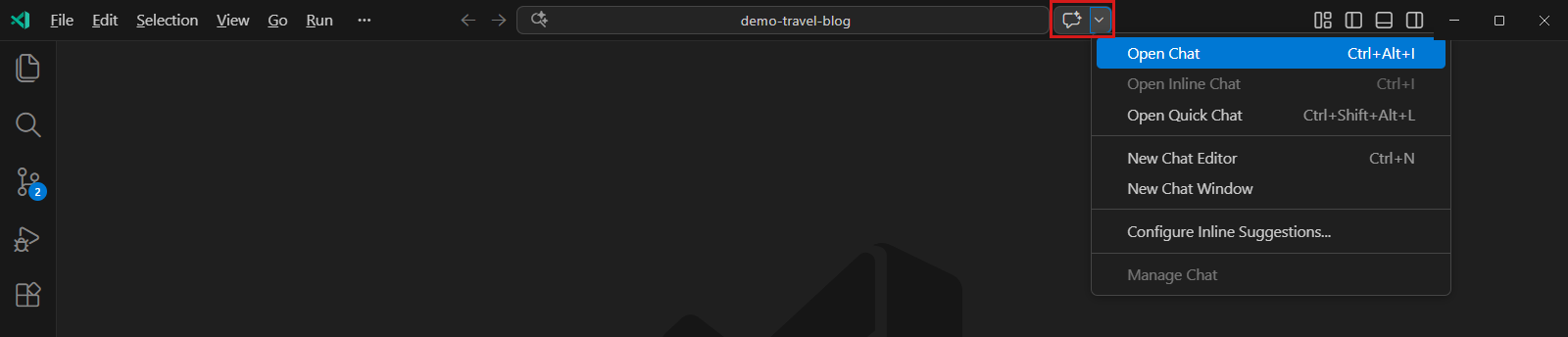
-
Enter a prompt in the prompt box. For an introduction to the kinds of prompts you can use, see Getting started with prompts for GitHub Copilot Chat in your IDE.
-
Evaluate Copilot's response, and make a follow-up request if needed.
The response may contain text, code blocks, buttons, images, URIs, and file trees. The response often includes interactive elements. For example, the response may include a menu to insert a code block, or a button to invoke a Visual Studio Code command.
To see the files that Copilot Chat used to generate the response, select the Used n references dropdown at the top of the response. The references may include a link to a custom instructions file for your repository. This file contains additional information that is automatically added to all of your chat questions to improve the quality of the responses. For more information, see GitHub Copilot用のリポジトリカスタム命令の追加.

Using keywords in your prompt
You can use special keywords to help Copilot understand your prompt. For examples, see Getting started with prompts for GitHub Copilot Chat in your IDE.
Chat participants
Chat participants are like domain experts who have a specialty that they can help you with.
Copilot Chat can infer relevant chat participants based on your natural language prompt, improving discovery of advanced capabilities without you having to explicitly specify the participant you want to use in your prompt.
メモ
Automatic inference for chat participants is currently in パブリック プレビュー and is subject to change.
Alternatively, you can manually specify a chat participant to scope your prompt to a specific domain. To do this, type @ in the chat prompt box, followed by a chat participant name.
For a list of available chat participants, type @ in the chat prompt box. See also GitHub Copilot Chat のチート シート or Chat participants in the Visual Studio Code documentation.
Slash commands
Use slash commands to avoid writing complex prompts for common scenarios. To use a slash command, type / in the chat prompt box, followed by a command.
To see all available slash commands, type / in the chat prompt box. See also GitHub Copilot Chat のチート シート or Slash commands in the Visual Studio Code documentation.
Chat variables
Use chat variables to include specific context in your prompt. To use a chat variable, type # in the chat prompt box, followed by a chat variable.
To see all available chat variables, type # in the chat prompt box. See also GitHub Copilot Chat のチート シート.
Using GitHub skills for Copilot
Copilot の GitHub 固有のスキルは、Copilot が提供できる情報の種類を拡張します。 Copilot Chat でこれらのスキルにアクセスするには、質問に「@github」を含めます。
質問に @github を追加すると、Copilot によって、質問の内容に基づいて適切なスキルが動的に選択されます。 また、特定のスキルを使用するように Copilot Chat に明示的に要求することもできます。 次の 2 つの方法で行います。
- 自然言語を使用して、スキルを使用するように Copilot Chat に依頼します。 たとえば、
@github Search the web to find the latest GPT model from OpenAI.のように指定します。 - Web 検索を具体的に呼び出すには、質問に
#web変数を含めることができます。 たとえば、@github #web What is the latest LTS of Node.js?のように指定します。
Copilot に問い合わせ、現在使用可能なスキルの一覧を生成できます: @github What skills are available?
Using Model Context Protocol (MCP) servers
MCP を使うと、Copilot Chat を既存のさまざまなツールやサービスと統合して、その機能を拡張できます。 詳細については、「モデル コンテキスト プロトコル (MCP) について」を参照してください。
AI models for Copilot Chat
応答の生成に使用 Copilot モデルを変更できます。 質問の種類によっては、別のモデルの方がより良いパフォーマンスを発揮したり、より有用な回答が提供されたり場合があります。 オプションには、高度な機能を備えた Premium モデルも含まれます。
Additional ways to access Copilot Chat
In addition to submitting prompts through the chat view, you can submit prompts in other ways:
- Quick chat: To open the quick chat dropdown, enter Shift+Option+Command+L (Mac) / Ctrl+Shift+Alt+L (Windows/Linux).
- Inline: To start an inline chat directly in the editor or integrated terminal, enter Command+i (Mac) / Ctrl+i (Windows/Linux).
- Smart actions: To submit prompts via the context menu, right click in your editor, select Copilot in the menu that appears, then select one of the actions. Smart actions can also be accessed via the sparkle icon that sometimes appears when you select a line of code.
See inline chat, quick chat, and chat smart actions in the Visual Studio Code documentation for more details.
Using images in Copilot Chat
イメージ入力をサポートするモデルを使用する場合は、プロンプトに画像と PDF を添付できます。
Copilot では、次のファイルの種類がサポートされています。
- JPEG (
.jpg、.jpeg) - PNG(
.png) - GIF(
.gif) - WEBP (
.webp) - PDF (
.pdf) - HEIC (
.heic) - HEIF (
.heif)
たとえば、次のようなものを添付できます。
- コード スニペットのスクリーンショット。 Copilot にコードの説明を依頼します。
- アプリケーションのユーザー インターフェイスのモックアップと、コードの生成を Copilot に依頼します。
- フローチャートを示し、 Copilot に画像に示されているプロセスについて説明するように依頼します。
- Web ページのスクリーンショット。同様のページの HTML を生成するように Copilot に依頼します。
画像と PDF の添付ファイルは、すべての Copilot プランで使用でき、既定で有効になっています。この機能のオンとオフを切り替えるポリシーは必要ありません。
Attaching images to your chat prompt
-
Do one of the following:
- Copy an image and paste it into the chat view.
- Drag and drop one or more image file from your operating system's file explorer—or from the Explorer in VS Code—into the chat view.
- Right-click an image file in the VS Code Explorer and click Copilot then Add File to Chat.
-
画像に添えるプロンプトをチャット ビューに入力します。 たとえば、
explain this diagram、describe each of these images in detail、what does this error message meanなどです。
Sharing feedback
To indicate whether a response was helpful, use the thumbs up and thumbs down icons that appear next to the response.
To leave feedback about the GitHub Copilot Chat extension, open an issue in the microsoft/vscode-copilot-release repository.
Further reading
Prerequisites
-
Access to GitHub Copilot. 「GitHub Copilotについて」をご覧ください。
-
Visual Studio 2022 version 17.8 or later. See Install Visual Studio in the Visual Studio documentation.
- For Visual Studio 17.8 and 17.9:
- GitHub Copilot extension. See Install GitHub Copilot in Visual Studio in the Visual Studio documentation.
- GitHub Copilot Chat extension. See Install GitHub Copilot in Visual Studio in the Visual Studio documentation.
Visual Studio 17.10 and later have the GitHub Copilot and GitHub Copilot Chat extensions built in. You don't need to install them separately.
- For Visual Studio 17.8 and 17.9:
-
Sign in to GitHub in Visual Studio. If you experience authentication issues, see GitHub Copilotに関する一般的な問題のトラブルシューティング.
組織GitHub Copilotまたはエンタープライズを介してにアクセスできる場合、組織の所有者GitHub Copilot Chatまたはエンタープライズ管理者がチャットを無効にしている場合、を使用することはできません。 「組織内のGitHub Copilotのポリシーと機能の管理」をご覧ください。
Chat modes
Visual Studio supports the following chat modes:
- Ask mode: Get answers and guidance without making changes to your code.
- Agent mode: Give Copilot a high-level task and allow it to edit code, run commands, and iterate on the results. See Using agent mode in your IDE.
To switch between modes, use the mode dropdown at the bottom of the chat panel. Chat modes are available in Visual Studio 17.14 and later.
Using ask mode
Use ask mode when you want Copilot to explain code, answer a question, or suggest an approach without modifying your project.
To use ask mode, select Ask from the mode dropdown at the bottom of the chat panel, then submit a prompt as described below.
Submitting prompts
You can ask Copilot Chat to give you code suggestions, explain code, generate unit tests, and suggest code fixes.
-
In the Visual Studio menu bar, click View, then click GitHub Copilot Chat.
-
In the Copilot Chat window, enter a prompt, then press Enter. For example prompts, see Getting started with prompts for GitHub Copilot Chat in your IDE.
-
Evaluate Copilot's response, and submit a follow up prompt if needed.
The response often includes interactive elements. For example, the response may include buttons to copy, insert, or preview the result of a code block.
To see the files that Copilot Chat used to generate the response, click the References link below the response. The references may include a link to a custom instructions file for your repository. This file contains additional information that is automatically added to all of your chat questions to improve the quality of the responses. For more information, see GitHub Copilot用のリポジトリカスタム命令の追加.
Using keywords in your prompt
You can use special keywords to help Copilot understand your prompt.
Slash commands
Use slash commands to avoid writing complex prompts for common scenarios. To use a slash command, type / in the chat prompt box, followed by a command.
To see all available slash commands, type / in the chat prompt box. See also GitHub Copilot Chat のチート シート or Slash commands in the Visual Studio documentation.
References
By default, Copilot Chat will reference the file that you have open or the code that you have selected. You can also use # followed by a file name, file name and line numbers, or solution to reference a specific file, lines, or solution.
See also GitHub Copilot Chat のチート シート or Reference in the Visual Studio documentation.
Using GitHub skills for Copilot (preview)
メモ
The @github chat participant is currently in preview, and only available in Visual Studio 2022 Preview 2 onwards.
Copilot's GitHub-specific skills expand the type of information Copilot can provide. To access these skills in Copilot Chat in Visual Studio, include @github in your question.
When you add @github to a question, Copilot dynamically selects an appropriate skill, based on the content of your question. You can also explicitly ask Copilot Chat to use a particular skill. For example, @github Search the web to find the latest GPT4 model from OpenAI.
You can generate a list of currently available skills by asking Copilot: @github What skills are available?
Using Model Context Protocol (MCP) servers
MCP を使うと、Copilot Chat を既存のさまざまなツールやサービスと統合して、その機能を拡張できます。 詳細については、「モデル コンテキスト プロトコル (MCP) について」を参照してください。
AI models for Copilot Chat
応答の生成に使用 Copilot モデルを変更できます。 質問の種類によっては、別のモデルの方がより良いパフォーマンスを発揮したり、より有用な回答が提供されたり場合があります。 オプションには、高度な機能を備えた Premium モデルも含まれます。
Additional ways to access Copilot Chat
In addition to submitting prompts through the chat window, you can submit prompts inline. To start an inline chat, right click in your editor window and select Ask Copilot.
See Ask questions in the inline chat view in the Visual Studio documentation for more details.
Using images in Copilot Chat
イメージ入力をサポートするモデルを使用する場合は、プロンプトに画像と PDF を添付できます。
Copilot では、次のファイルの種類がサポートされています。
- JPEG (
.jpg、.jpeg) - PNG(
.png) - GIF(
.gif) - WEBP (
.webp) - PDF (
.pdf) - HEIC (
.heic) - HEIF (
.heif)
たとえば、次のようなものを添付できます。
- コード スニペットのスクリーンショット。 Copilot にコードの説明を依頼します。
- アプリケーションのユーザー インターフェイスのモックアップと、コードの生成を Copilot に依頼します。
- フローチャートを示し、 Copilot に画像に示されているプロセスについて説明するように依頼します。
- Web ページのスクリーンショット。同様のページの HTML を生成するように Copilot に依頼します。
画像と PDF の添付ファイルは、すべての Copilot プランで使用でき、既定で有効になっています。この機能のオンとオフを切り替えるポリシーは必要ありません。
Attaching images to your chat prompt
-
If you see the AI model picker at the bottom right of the chat view, select one of the models that supports adding images to prompts:
-
Do one of the following:
- Copy an image and paste it into the chat view.
- Click the paperclip icon at the bottom right of the chat view, click Upload Image, browse to the image file you want to attach, select it and click Open.
You can add multiple images if required.
-
Type your prompt into the chat view to accompany the image. For example,
explain this image, ordescribe each of these images in detail.
Sharing feedback
To share feedback about Copilot Chat, you can use the Send feedback button in Visual Studio. For more information on providing feedback for Visual Studio, see the Visual Studio Feedback documentation.
-
In the top right corner of the Visual Studio window, click the Send feedback button.
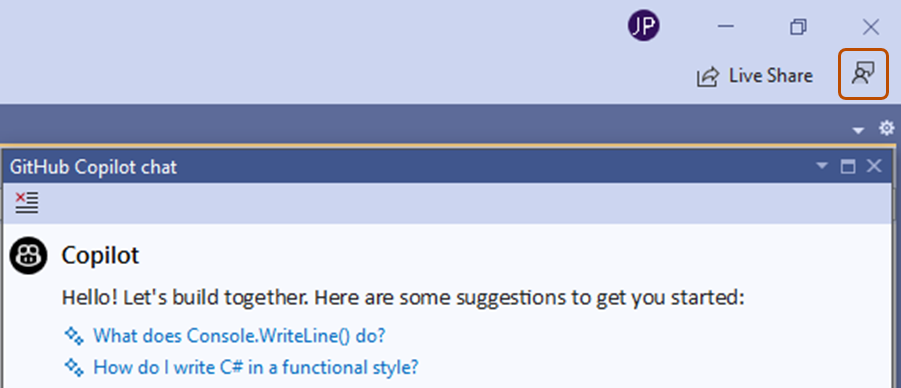
-
Choose the option that best describes your feedback.
- To report a bug, click Report a problem.
- To request a feature, click Suggest a feature.

Further reading
- GitHub Copilot Chat のプロンプト エンジニアリング
- Using GitHub Copilot Chat in Visual Studio in the Microsoft Learn documentation
- Tips to improve GitHub Copilot Chat results in the Microsoft Learn documentation
- GitHubでGitHub Copilotに質問する
- アプリケーション カード: GitHub Copilot Chat
- 追加の製品および機能に適用される GitHub 条件
- GitHub Copilot Trust Center
- GitHub Copilot FAQ
Prerequisites
-
Access to GitHub Copilot. 「GitHub Copilotについて」をご覧ください。
-
Compatible JetBrains IDE. GitHub Copilot is compatible with the following IDEs:
- IntelliJ IDEA (Ultimate、Community、Educational)
- Android Studio
- CLion
- Code With Me ゲスト
- DataGrip
- DataSpell
- GoLand
- JetBrains クライアント
- MPS
- PhpStorm
- PyCharm (Professional、Community、Educational)
- Rider
- RubyMine
- RustRover
- WebStorm
ダウンロードするには、JetBrains IDE のツール ファインダーを参照してください。
-
GitHub Copilot拡張機能の最新バージョン。 JetBrains Marketplace の GitHub Copilot プラグイン を参照してください。 インストール手順については、「Installing the GitHub Copilot extension in your environment」を参照してください。
-
JetBrains IDE で GitHub にサインインします。 認証手順については、「Installing the GitHub Copilot extension in your environment」を参照してください。
組織GitHub Copilotまたはエンタープライズを介してにアクセスできる場合、組織の所有者GitHub Copilot Chatまたはエンタープライズ管理者がチャットを無効にしている場合、を使用することはできません。 「組織内のGitHub Copilotのポリシーと機能の管理」をご覧ください。
Chat modes
The agent picker in the Copilot Chat panel lets you choose which agent drives your conversation. To switch agents, use the Agents dropdown at the bottom of the chat panel.
The following agents are available:
- Agent mode (default): Full agentic experience with autonomous task execution. See Using agent mode in your IDE.
- Ask mode: Get quick answers and assistance without making code changes.
- Plan mode: Collaborate on planning before implementation—Copilot analyzes your request and builds a structured plan for your review. See Using plan mode in your IDE.
- Edit mode: Make controlled edits across multiple files that you review and accept individually.
- Copilot CLI: Runs Copilot through Copilot CLI, providing a terminal-first agentic experience with support for multiple isolation modes, live session progress, and tool call visibility. For more information, see GITHUB COPILOT CLI について.
- Custom agents: Use personalized agents tailored to your specific needs. See Using custom agents in your IDE.
Copilot Edits lets you make changes across multiple files directly from a single Copilot Chat prompt, using edit mode and agent mode.
ヒント
You can also access Copilot from JetBrains AI Assistant without installing the Copilot plugin. For more information, see JetBrains IDE でのGitHub Copilotの使用.
Using edit mode
編集モードは、Visual Studio Code と JetBrains IDE でのみ使用できます。
Copilot から提案される編集をより詳細に制御する場合は、編集モードを使います。 編集モードでは、Copilot が変更できるファイルを選び、各繰り返しで Copilot にコンテキストを提供し、各ターン後に提案された編集を受け入れるかどうかを決定します。
編集モードは、次のユース ケースに最適です。
- 定義された一連のファイルに対して、迅速かつ具体的な更新を行う必要があります。
- Copilot が使用する LLM リクエストの数を完全に制御する必要があります。
- To start an edit session, click Copilot in the menu bar, then select Open GitHub Copilot Chat.
- At the top of the chat panel, click Copilot Edits.
- Add relevant files to the working set to indicate to GitHub Copilot which files you want to work on. You can add all open files by clicking Add all open files or individually search for single files.
- Submit a prompt. In response to your prompt, Copilot Edits determines which files in your working set to change and adds a short description of the change.
- Review the changes and Accept or Discard the edits for each file.
Submitting prompts
You can ask Copilot Chat to give you code suggestions, explain code, generate unit tests, and suggest code fixes.
-
Open the Copilot Chat window by clicking the GitHub Copilot Chat icon at the right side of the JetBrains IDE window.

-
Enter a prompt in the prompt box. For example prompts, see Getting started with prompts for GitHub Copilot Chat in your IDE.
-
Evaluate Copilot's response, and submit a follow up prompt if needed.
The response often includes interactive elements. For example, the response may include buttons to copy or insert a code block.
To see the files that Copilot Chat used to generate the response, click the References link below the response. The references may include a link to a custom instructions file for your repository. This file contains additional information that is automatically added to all of your chat questions to improve the quality of the responses. For more information, see GitHub Copilot用のリポジトリカスタム命令の追加.

Supplementing your prompt
You can use slash commands and file references to help Copilot understand your what you are asking it to do.
Slash commands
Use slash commands to avoid writing complex prompts for common scenarios. To use a slash command, type / in the chat prompt box, followed by a command.
To see all available slash commands, type / in the chat prompt box. See also GitHub Copilot Chat のチート シート.
File references
By default, Copilot Chat will reference the file that you have open or the code that you have selected. You can also tell Copilot Chat which files to reference by dragging a file into the chat prompt box. Alternatively, you can right click on a file, select GitHub Copilot, then select Reference File in Chat.
Using GitHub skills for Copilot
Copilot の GitHub 固有のスキルは、Copilot が提供できる情報の種類を拡張します。 Copilot Chat でこれらのスキルにアクセスするには、質問に「@github」を含めます。
質問に @github を追加すると、Copilot によって、質問の内容に基づいて適切なスキルが動的に選択されます。 また、特定のスキルを使用するように Copilot Chat に明示的に要求することもできます。 次の 2 つの方法で行います。
- 自然言語を使用して、スキルを使用するように Copilot Chat に依頼します。 たとえば、
@github Search the web to find the latest GPT model from OpenAI.のように指定します。 - Web 検索を具体的に呼び出すには、質問に
#web変数を含めることができます。 たとえば、@github #web What is the latest LTS of Node.js?のように指定します。
Copilot に問い合わせ、現在使用可能なスキルの一覧を生成できます: @github What skills are available?
Using Model Context Protocol (MCP) servers
MCP を使うと、Copilot Chat を既存のさまざまなツールやサービスと統合して、その機能を拡張できます。 詳細については、「モデル コンテキスト プロトコル (MCP) について」を参照してください。
AI models for Copilot Chat
応答の生成に使用 Copilot モデルを変更できます。 質問の種類によっては、別のモデルの方がより良いパフォーマンスを発揮したり、より有用な回答が提供されたり場合があります。 オプションには、高度な機能を備えた Premium モデルも含まれます。
Additional ways to access Copilot Chat
- Built-in requests. In addition to submitting prompts through the chat window, you can submit built-in requests by right clicking in a file, selecting GitHub Copilot, then selecting one of the options.
- Inline. You can submit a chat prompt inline, and scope it to a highlighted code block or your current file.
- To start an inline chat, right click on a code block or anywhere in your current file, hover over GitHub Copilot, then select Copilot: Inline Chat, or enter Ctrl+Shift+I.
Sharing feedback
To share feedback about Copilot Chat, you can use the share feedback link in JetBrains.
-
At the right side of the JetBrains IDE window, click the Copilot Chat icon to open the Copilot Chat window.
-
At the top of the Copilot Chat window, click the share feedback link.
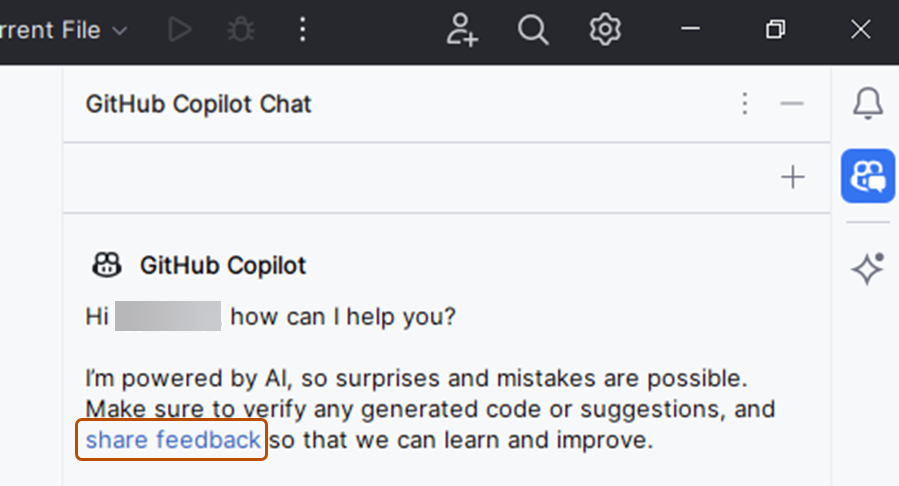

Further reading
Prerequisites
- Access to GitHub Copilot. 「GitHub Copilotについて」をご覧ください。
- Latest version of the GitHub Copilot extension. For installation instructions, see Installing the GitHub Copilot extension in your environment.
- Sign in to GitHub in Xcode.
組織GitHub Copilotまたはエンタープライズを介してにアクセスできる場合、組織の所有者GitHub Copilot Chatまたはエンタープライズ管理者がチャットを無効にしている場合、を使用することはできません。 「組織内のGitHub Copilotのポリシーと機能の管理」をご覧ください。
Chat modes
You can use Copilot Chat in agent mode to autonomously accomplish a set task, or in plan mode to draft an implementation plan before any code changes are made. To switch between modes, use the agents dropdown at the bottom of the chat window.
- For agent mode, see Using agent mode in your IDE.
- For plan mode, see Using plan mode in your IDE.
Submitting prompts
You can ask Copilot Chat to give you code suggestions, explain code, generate unit tests, and suggest code fixes.
-
To open the chat window, click Editor in the menu bar, then click GitHub Copilot then Open Chat. Copilot Chat opens in a new window.
-
Enter a prompt in the prompt box. For example prompts, see Getting started with prompts for GitHub Copilot Chat in your IDE.
-
Evaluate Copilot's response, and submit a follow up prompt if needed.
The response often includes interactive elements. For example, the response may include buttons to copy or insert a code block.
To see the files that Copilot Chat used to generate the response, click the References link below the response. The references may include a link to a custom instructions file for your repository. This file contains additional information that is automatically added to all of your chat questions to improve the quality of the responses. For more information, see GitHub Copilot用のリポジトリカスタム命令の追加.
Using Model Context Protocol (MCP) servers
MCP を使うと、Copilot Chat を既存のさまざまなツールやサービスと統合して、その機能を拡張できます。 詳細については、「モデル コンテキスト プロトコル (MCP) について」を参照してください。
AI models for Copilot Chat
応答の生成に使用 Copilot モデルを変更できます。 質問の種類によっては、別のモデルの方がより良いパフォーマンスを発揮したり、より有用な回答が提供されたり場合があります。 オプションには、高度な機能を備えた Premium モデルも含まれます。
Using keywords in your prompt
You can use special keywords to help Copilot understand your prompt.
Slash commands
Use slash commands to avoid writing complex prompts for common scenarios. To use a slash command, type / in the chat prompt box, followed by a command.
To see all available slash commands, type / in the chat prompt box. For more information, see GitHub Copilot Chat のチート シート.
File references
By default, Copilot Chat will reference the file that you have open or the code that you have selected. To attach a specific file as reference, click in the chat prompt box.
Chat management
You can open a conversation thread for each Xcode IDE to keep discussions organized across different contexts. You can also revisit previous conversations and reference past suggestions through the chat history.
Sharing feedback
To indicate whether a response was helpful, use or that appear next to the response.
Further reading
Prerequisites
- Copilot へのアクセス権。 「GitHub Copilotについて」をご覧ください。
- Eclipse の互換バージョン。 GitHub Copilot 拡張機能を使うには、Eclipse バージョン 2024-09 以降が必要です。 Eclipse のダウンロード ページを参照してください。
- Copilot Business または Copilot Enterprise プランを利用する organization または Enterprise のメンバーである場合、Copilot で MCP を使うには、"Copilot の MCP サーバー" ポリシーを有効にする必要があります。
- Latest version of the GitHub Copilot extension. Download this from the Eclipse Marketplace. For more information, see Installing the GitHub Copilot extension in your environment.
- Sign in to GitHub in Eclipse.
組織GitHub Copilotまたはエンタープライズを介してにアクセスできる場合、組織の所有者GitHub Copilot Chatまたはエンタープライズ管理者がチャットを無効にしている場合、を使用することはできません。 「組織内のGitHub Copilotのポリシーと機能の管理」をご覧ください。
Chat modes
You can use Copilot Chat in agent mode to autonomously accomplish a set task, or in plan mode to draft an implementation plan before any code changes are made. To switch between modes, use the agents dropdown at the bottom of the chat panel.
- For agent mode, see Using agent mode in your IDE.
- For plan mode, see Using plan mode in your IDE.
Submitting prompts
You can ask Copilot Chat to give you code suggestions, explain code, generate unit tests, and suggest code fixes.
-
To open the Copilot Chat panel, click the Copilot icon () in the status bar at the bottom of Eclipse, then click Open Chat.
-
Enter a prompt in the prompt box, then press Enter.
For an introduction to the kinds of prompts you can use, see Getting started with prompts for GitHub Copilot Chat in your IDE.
-
Evaluate Copilot's response, and make a follow up request if needed.
Using keywords in your prompt
You can use special keywords to help Copilot understand your prompt. For examples, see Getting started with prompts for GitHub Copilot Chat in your IDE.
Slash commands
Use slash commands to avoid writing complex prompts for common scenarios. To use a slash command, type / in the chat prompt box, followed by a command. For example, use /explain to ask Copilot to explain the code in the file currently displayed in the editor.
To see all available slash commands, type / in the chat prompt box.
Using Model Context Protocol (MCP) servers
MCP を使うと、Copilot Chat を既存のさまざまなツールやサービスと統合して、その機能を拡張できます。 詳細については、「モデル コンテキスト プロトコル (MCP) について」を参照してください。
AI models for Copilot Chat
応答の生成に使用 Copilot モデルを変更できます。 質問の種類によっては、別のモデルの方がより良いパフォーマンスを発揮したり、より有用な回答が提供されたり場合があります。 オプションには、高度な機能を備えた Premium モデルも含まれます。