Introduction
GitHub Copilot can review your code and provide feedback. Where possible, Copilot's feedback includes suggested changes which you can apply with a couple of clicks.
For a full introduction to GitHub Copilot code review, see GitHub Copilotによるコードレビューについて.
Copilot code review uses GitHub Actions to run agentic capabilities. For more information, see Agentic capabilities for Copilot code review.
Copilot code review is also available for organization members without a Copilot license, when enabled by an enterprise administrator or organization owner. See Copilot code review for organization members without a Copilot license.
Using Copilot code review
These instructions explain how to use Copilot code review in the GitHub website. To see instructions for other popular coding environments, click the appropriate tab at the top of the page.
-
On GitHub.com, create a pull request or navigate to an existing pull request.
-
Under "Reviewers" in the right sidebar, next to Copilot, click Request.

-
Wait for Copilot to review your pull request. This usually takes less than 30 seconds.
-
Scroll down and read through Copilot's comments.
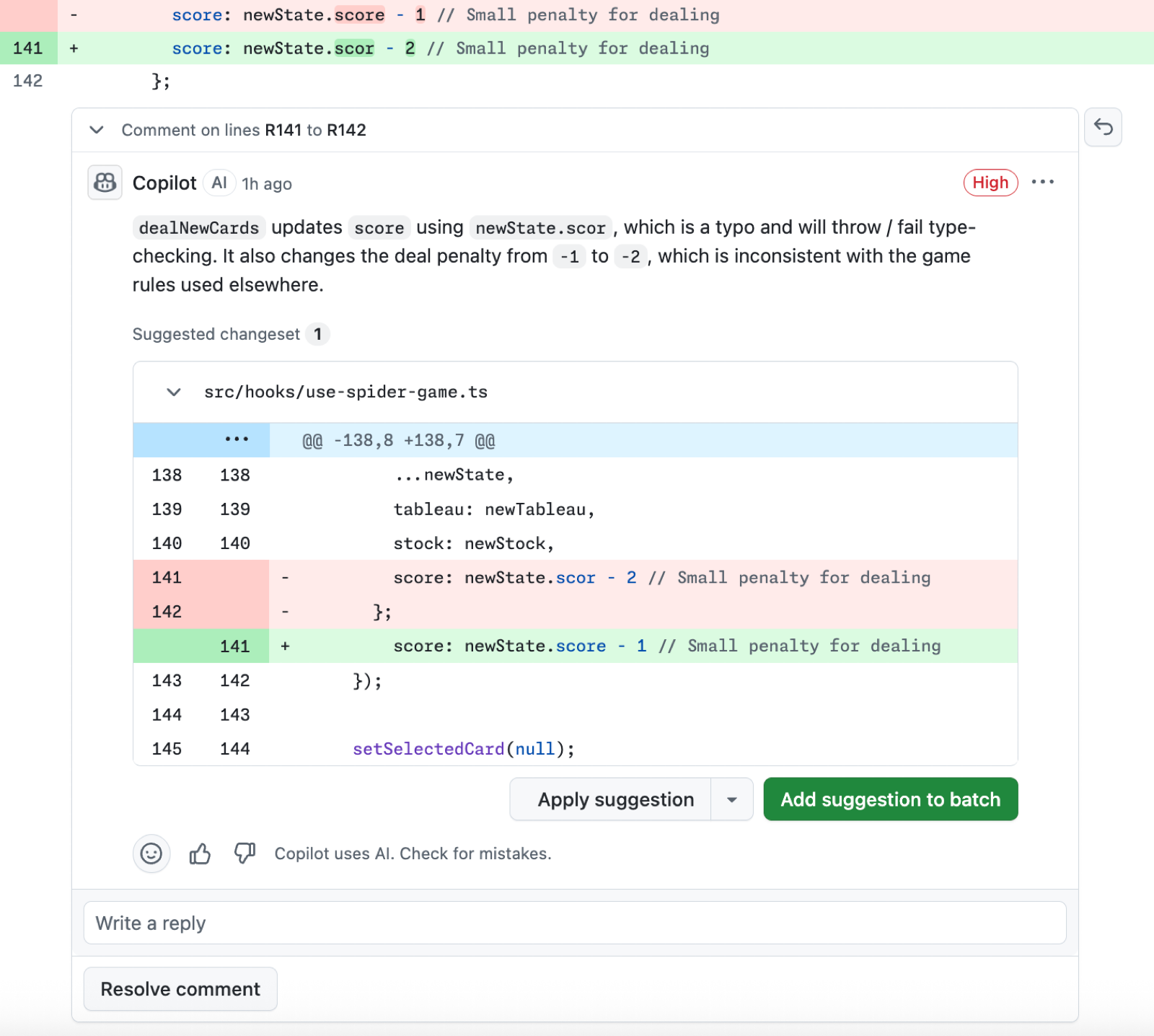
Copilot labels each comment with a severity level of "High," "Medium," or "Low" to help you prioritize the issues it finds based on their importance.
By default, Copilot leaves a "Comment" review, not an "Approve" review or a "Request changes" review. This means that, by default, Copilot's reviews do not count toward required approvals for the pull request. However, if configured to do so, Copilot can leave "Approve" reviews. For more information, see Pull request approvals from Copilot.
-
Where possible, Copilot's feedback includes suggested changes which you can apply with a couple of clicks.
If you're happy with the changes, you can accept a single suggestion from Copilot and commit it, or accept a group of suggestions together in a single commit. For more information, see プルリクエストでのフィードバックを取り込む.
You can also invoke Copilot cloud agent to implement suggested changes. To do this, you must:
- Enable GitHub Copilot code review and Copilot cloud agent.
- On review comments from GitHub Copilot code review, click Fix with Copilot. This creates a draft comment on the pull request, where you can instruct Copilot to address specific feedback. You can then select whether Copilot will create a new pull request against your branch or a commit to the same pull request with the suggestions applied.
-
Copilot's review comments behave like review comments from humans. You can add reactions to them, comment on them, resolve them and hide them.
Any comments you add to Copilot's review comments will be visible to humans, but they won't be visible to Copilot, and Copilot won't reply.


You can also request a review from Copilot through the GitHub REST API by requesting copilot-pull-request-reviewer[bot] as a reviewer. For more information, see レビュー要求用 REST API エンドポイント.
Enabling automatic reviews
By default, you manually request a review from Copilot on each pull request, in the same way you would request a review from a human. However, you can set up Copilot to automatically review all pull requests. See GitHub Copilotによるコード レビューの構成.
Requesting a re-review from Copilot
When you push changes to a pull request that Copilot has reviewed, it won't automatically re-review your changes unless you've configured it to review new pushes after enabling automatic reviews.
To manually request a re-review from Copilot, click the button next to Copilot's name in the Reviewers menu. For more information, see プルリクエストレビューを依頼する.
To automatically request re-reviews from Copilot on every push, enable automatic code review for the repository and select Review new pushes in the ruleset settings. For more information, see GitHub Copilotによるコード レビューの構成.
メモ
When re-reviewing a pull request, Copilot may repeat the same comments again, even if they have been dismissed with the "Resolve conversation" button or downvoted with the thumbs down (👎) button.
Choosing a review effort level
With review effort levels, you can choose the level of thoroughness of Copilot's review that matches the criticality of your code.
- Lite: Cost-efficient review that provides targeted feedback on glaring issues such as bugs, security vulnerabilities, and style inconsistencies.
- Balanced: Deeper analysis of complex logic, security-sensitive code, and cross-service changes, using a higher-reasoning model.
You can select Copilot review effort in the pull request before you request a review from Copilot, under the Reviewers section where Copilot appears as a reviewer. You can also set a default Copilot review effort in your settings. Organization owners and repository administrators can set a default Copilot review effort for automatic reviews.
For more information, see GitHub Copilotによるコードレビューについて.
Pull request approvals from Copilot
メモ
Copilot 承認はパブリック プレビューの段階にあり、変更される可能性があります。
Every Copilot code review includes an approval assessment in the overview comment, indicating whether Copilot considers the pull request ready to approve. On its own, this assessment does not count toward merge requirements.
When approvals are enabled, Copilot can submit an approving review that satisfies your repository's required-approval rule the same way a teammate's approval would. If new commits are pushed after Copilot approves, the approval is dismissed, and you can re-request a review. For more details on required reviews, see 必須レビューでのプルリクエストの承認.
Approvals are off by default and can be configured at the enterprise, organization, and repository levels. Repository administrators can also use file paths to control which Copilot approvals count toward merge requirements. For configuration steps, see GitHub Copilotによるコード レビューの構成.
Customizing Copilot's reviews with custom instructions
リポジトリにカスタム命令を追加することで、 Copilot code review をカスタマイズできます。 リポジトリのカスタム指示は、リポジトリ全体を対象にすることも、パス固有にすることもできます。
コードベース全体に適用する必要があるリポジトリ全体のレビュー ガイダンスには、 .github/copilot-instructions.md を使用します。 これは、コーディング標準、レビュー基準、すべてのレビューで考慮する必要がある一般的なプラクティスなど、組織全体の期待 Copilot 説明するのに適した場所です。
リポジトリのルートにある AGENTS.md ファイルを使用して、プロジェクトのしくみをより深く理解するのに役立つ追加のリポジトリ コンテキスト Copilot 提供します。 たとえば、意図的なパターン、コードベースのどの部分をより詳しく調べる必要があるか、チームが優れたアーキテクチャ、テスト、実装のプラクティスと考えているものを説明できます。 これにより、レビューの関連性が高く、チームがソフトウェアを構築する方法に合わせて調整できます。
一致するファイルを確認する場合にのみ適用されるパス固有の手順には、 .github/instructions/**/*.instructions.md ファイルを使用します。 これは、リポジトリのさまざまな部分が異なる規則に従う場合、特殊なチェックが必要な場合、または特定の言語、フレームワーク、またはサブシステムに合わせたレビュー ガイダンスが必要な場合に便利です。
Copilot code review また、リポジトリ内の CLAUDE.md、 GEMINI.md、および REVIEW.md ファイルからカスタム命令が存在する場合は読み取ります。
詳しくは、「GitHub Copilot用のリポジトリカスタム命令の追加」をご覧ください。
メモ
プル要求を確認するときに、 Copilot は、ベース ブランチではなく、ヘッド ブランチ (変更したブランチ) からリポジトリのカスタム命令、エージェント命令、およびエージェント スキルを読み取ります。 たとえば、 my-feature-branch を mainにマージする場合、 Copilot は my-feature-branchの命令とスキルを使用するため、同じプル要求で変更を最初にマージせずにテストできます。
例
この .github/copilot-instructions.md ファイルの例には、リポジトリ内のすべての Copilot code reviewに適用される 3 つの命令が含まれています。
When performing a code review, respond in Spanish.

When performing a code review, apply the checks in the `/security/security-checklist.md` file.

When performing a code review, focus on readability and avoid nested ternary operators.
MCP servers and agent skills
Copilot code review can use agent skills and MCP servers configured in the repository, when they are relevant to the code being reviewed.
To make these available for Copilot code review on GitHub, configure:
- Agent skills in your repository (in
.github/skills). If you want a skill to target review tasks, use a review-focused skill directory name such ascode-review. For setup details, see GitHub Copilot のスキルを追加する. - MCP servers in repository Copilot settings. The GitHub MCP server and Playwright MCP server are enabled by default. For setup details, see リポジトリの MCP サーバーを構成する.
Copilot code review は、次の場合にこのコンテキストを使用する可能性が高くなります。
- エージェント スキル ディレクトリには、pull request レビューを目的としていることを示す、レビューに重点を置いた名前と説明 (
code-reviewなど) があります。 - エージェントのスキルまたはカスタム命令は、特定の MCP コンテキストを使用するように Copilot code review に明示的に指示します。
- プル リクエストの説明では、issue キーやインシデント ID など、構成済みの MCP サーバーを通じて利用できる項目を参照します。
特定のレビューに使用 Copilot code review MCP コンテキストを確認するには、各レビュー コメントの下部に属性があるかどうかを確認します。 これらの属性は、そのコメントの生成に使用 Copilot code review 特定のエージェント スキルまたは MCP サーバーを参照します。 また、pull request タイムラインからリンクされたレビュー セッションを開き、セッション ログを確認して、呼び出された MCP サーバーとツールを確認することもできます。
リポジトリの設定では、プル リクエストのレビュー時に Copilot に MCP ツールの使用を許可する が既定で有効になっています。 Copilot cloud agentではなく、Copilot code reviewでのみ MCP サーバーを使用できるようにする場合は、この設定を無効にします。 詳細な手順については、 リポジトリの MCP サーバーを構成する を参照してください。
Customizing Copilot code review's environment
Copilot code review runs in an ephemeral development environment, similar to Copilot cloud agent. You can customize this environment using a GitHub Actions workflow file, in the same way you would for Copilot cloud agent, for example, to preinstall tools or dependencies, or to switch to a different operating system. For more information on how to structure this file, see 開発環境を構成する.
You can use either of the following files to configure Copilot code review's environment:
.github/workflows/copilot-setup-steps.yml: If you have already configured this file for Copilot cloud agent, Copilot code review will use the same configuration by default..github/workflows/copilot-code-review.yml: We recommend creating this file if you want to configure Copilot code review's environment independently of Copilot cloud agent. If this file is present in your repository, it is used for Copilot code review instead ofcopilot-setup-steps.yml.
You can also configure firewall rules to control the domains and URLs that Copilot code review can access, at both the organization and repository level. These settings are configured separately from Copilot cloud agent's firewall settings, in their own section of the same "Internet access" tab. See GitHub Copilotのファイアウォールのカスタマイズまたは無効化.
Providing feedback on Copilot's reviews
You can provide feedback on Copilot's comments directly within each comment. We use this information to improve the product and the quality of Copilot's suggestions.
To provide feedback on a review comment from Copilot, click the thumbs up (👍) or thumbs down (👎) button.

Reviewing a selection of code
You can request an initial review of a highlighted selection of code in Visual Studio Code.
- In Visual Studio Code, select the code you want to review.
- Right-click the selected code and choose Generate Code > Review.
- VS Code creates review comments in the Comments panel and also shows them inline in the editor.
Reviewing all uncommitted changes
If you have uncommitted changes, you can request a review in Visual Studio Code.
-
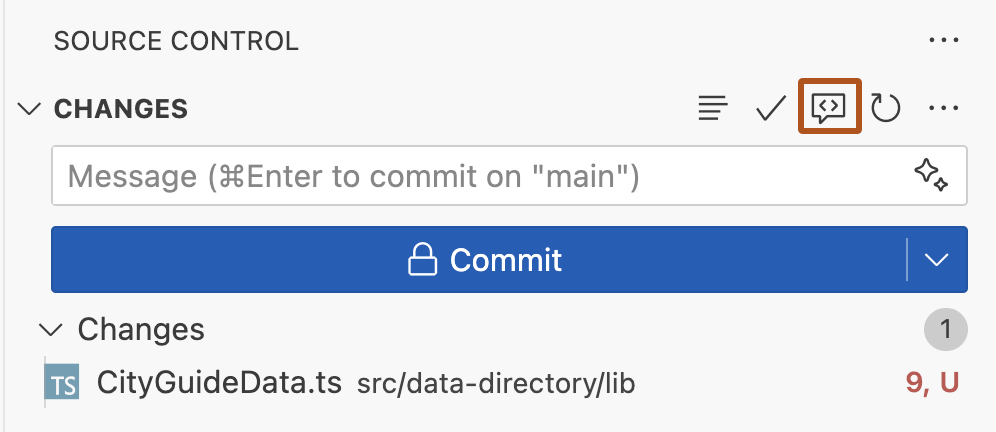
In VS Code, click the Source Control button in the Activity Bar.
-
At the top of the Source Control view, hover over CHANGES, then click the Copilot Code Review - Uncommitted Changes button.
-
Wait for Copilot to review your changes. This usually takes less than 30 seconds.
-
If Copilot has any comments, they will be shown inline in your file(s), and in the Problems tab.

Working with suggested changes provided by Copilot
Where possible, Copilot's feedback includes suggested changes which you can apply with a single click.

If you're happy with the change, you can accept a suggestion from Copilot by clicking the Apply and Go To Next button. Any changes you apply will not be automatically committed.
If you don't want to apply Copilot's suggested change, click the Discard and Go to Next button.
Providing feedback on Copilot's reviews
You can provide feedback on Copilot's comments directly within each comment. We use this information to improve the product and the quality of Copilot's suggestions.
To provide feedback, hover over the comment and click the thumbs up or thumbs down button.

Customizing Copilot's reviews with custom instructions
リポジトリにカスタム命令を追加することで、 Copilot code review をカスタマイズできます。 リポジトリのカスタム指示は、リポジトリ全体を対象にすることも、パス固有にすることもできます。
コードベース全体に適用する必要があるリポジトリ全体のレビュー ガイダンスには、 .github/copilot-instructions.md を使用します。 これは、コーディング標準、レビュー基準、すべてのレビューで考慮する必要がある一般的なプラクティスなど、組織全体の期待 Copilot 説明するのに適した場所です。
リポジトリのルートにある AGENTS.md ファイルを使用して、プロジェクトのしくみをより深く理解するのに役立つ追加のリポジトリ コンテキスト Copilot 提供します。 たとえば、意図的なパターン、コードベースのどの部分をより詳しく調べる必要があるか、チームが優れたアーキテクチャ、テスト、実装のプラクティスと考えているものを説明できます。 これにより、レビューの関連性が高く、チームがソフトウェアを構築する方法に合わせて調整できます。
一致するファイルを確認する場合にのみ適用されるパス固有の手順には、 .github/instructions/**/*.instructions.md ファイルを使用します。 これは、リポジトリのさまざまな部分が異なる規則に従う場合、特殊なチェックが必要な場合、または特定の言語、フレームワーク、またはサブシステムに合わせたレビュー ガイダンスが必要な場合に便利です。
Copilot code review また、リポジトリ内の CLAUDE.md、 GEMINI.md、および REVIEW.md ファイルからカスタム命令が存在する場合は読み取ります。
詳しくは、「GitHub Copilot用のリポジトリカスタム命令の追加」をご覧ください。
メモ
プル要求を確認するときに、 Copilot は、ベース ブランチではなく、ヘッド ブランチ (変更したブランチ) からリポジトリのカスタム命令、エージェント命令、およびエージェント スキルを読み取ります。 たとえば、 my-feature-branch を mainにマージする場合、 Copilot は my-feature-branchの命令とスキルを使用するため、同じプル要求で変更を最初にマージせずにテストできます。
例
この .github/copilot-instructions.md ファイルの例には、リポジトリ内のすべての Copilot code reviewに適用される 3 つの命令が含まれています。
When performing a code review, respond in Spanish.

When performing a code review, apply the checks in the `/security/security-checklist.md` file.

When performing a code review, focus on readability and avoid nested ternary operators.
Prerequisite
To use Copilot code review, you must use Visual Studio version 17.14 or later. See the Visual Studio downloads page.
Using Copilot code review
These instructions explain how to use Copilot code review in Visual Studio. To see instructions for other popular coding environments, click the appropriate tab at the top of the page.
-
In the Git Changes window, click Review changes with Copilot. This button appears as a comment icon with a sparkle.
-
Copilot will begin reviewing your changes. After a few moments, a link showing the number of code review comments appears in the Git Changes window.
-
Click the link to view and navigate the comments. If no issues are found, you'll see the message: Copilot did not comment on any files.
-
Copilot displays comments in your code with a summary of each potential issue. You can:
- Review and make changes based on the suggestions.
- Dismiss a comment using the downward arrow in the top-right corner of the comment box.
-
To remove all review comments, click next to the code review link in the Git Changes window.
For more information on enabling and configuring Copilot code review in Visual Studio, see Review local changes with Copilot Chat in the Visual Studio documentation.
Using Copilot code review
These instructions explain how to use Copilot code review in GitHub Mobile. To see instructions for other popular coding environments, click the appropriate tab at the top of the page.
- In GitHub Mobile, open a pull request.
- Scroll down to the Reviews section and expand it.
- Click Request Reviews.
- Add Copilot as a reviewer, then click Done.
Copilot will review the changes and provide feedback.
Prerequisite
To use Copilot code review in Xcode, you must use version 0.41.0 or later of the GitHub Copilot Chat extension. Download the latest release from the github/CopilotForXcode repository.
Using Copilot code review
These instructions explain how to use Copilot code review in Xcode. To see instructions for other popular coding environments, click the appropriate tab at the top of the page.
-
In Xcode, make some changes to one or more files.
-
Open the Copilot chat window by clicking Editor in the menu bar, clicking GitHub Copilot then Open Chat.
-
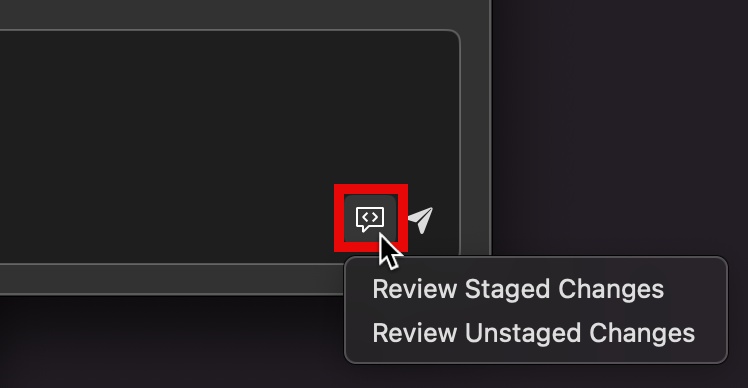
Near the bottom right of the prompt box in the Copilot chat window, click the Code Review button (a speech bubble icon).
-
Click either Review Staged Changes or Review Unstaged Changes.
-
A list of files containing changes is displayed in the chat window. Click the check boxes to deselect any files you don't want Copilot to review.
-
Click Continue to start the review process.
-
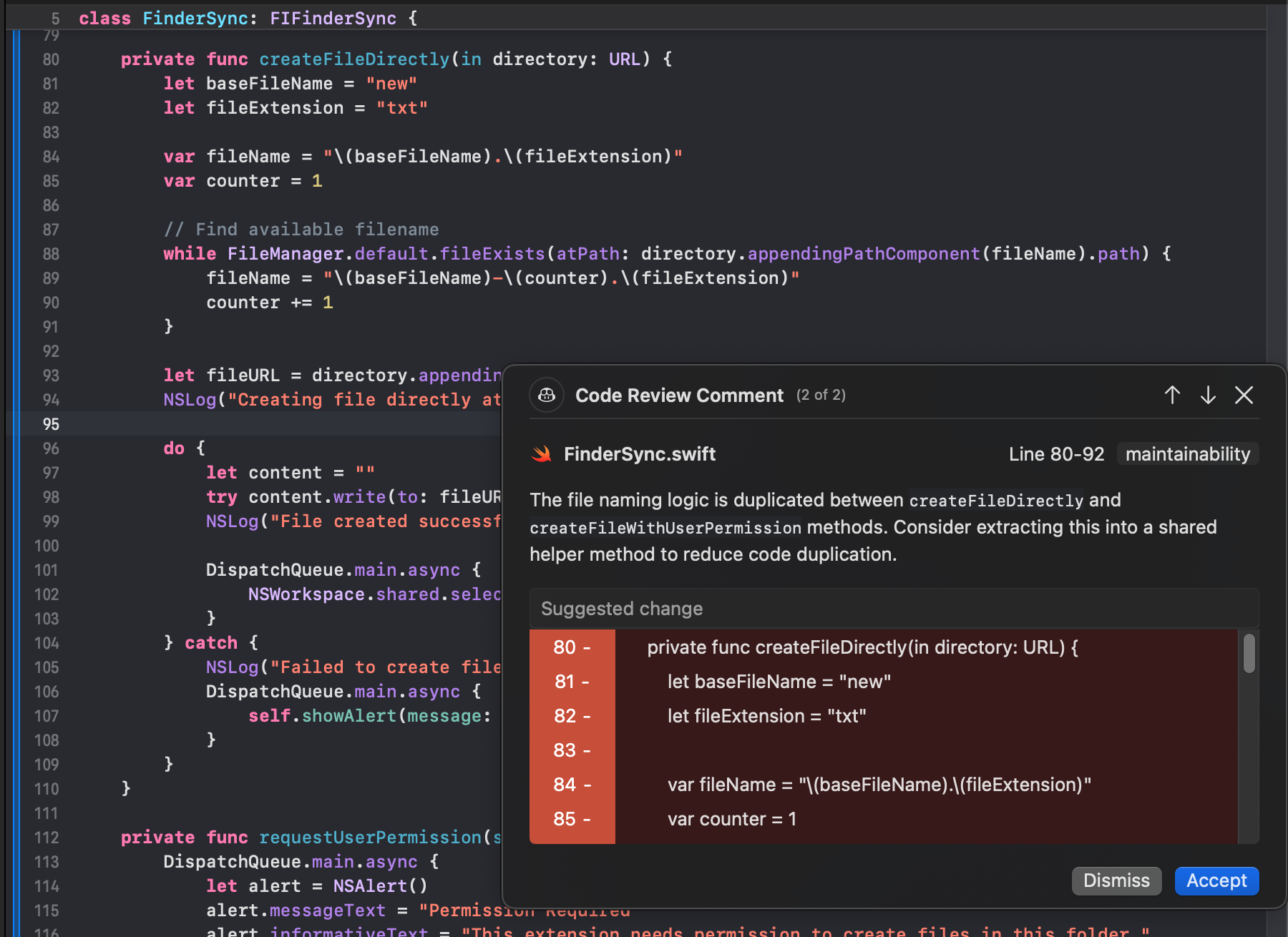
If Copilot finds things to comment on, it displays a Reviewed Changes list in the chat window, listing the files it has commented on. Click a file in this list to see the comments.
Each comment is shown in a popup, overlaid over the editor.
-
If there is more than one comment in the file, use the up and down arrows, at the top right of the popup, to navigate between comments.
-
Copilot may suggest replacement code. You can apply the suggested change by clicking Accept or reject it by clicking Dismiss.
-
Click another file in the Reviewed Changes list in the chat window, to see the review comments for another file.


Prerequisites
-
Access to Copilot. 「GitHub Copilotについて」をご覧ください。
-
Compatible JetBrains IDE. To use GitHub Copilot in JetBrains, you must have a compatible JetBrains IDE installed. GitHub Copilot is compatible with the following IDEs:
- IntelliJ IDEA (Ultimate、Community、Educational)
- Android Studio
- CLion
- Code With Me ゲスト
- DataGrip
- DataSpell
- GoLand
- JetBrains クライアント
- MPS
- PhpStorm
- PyCharm (Professional、Community、Educational)
- Rider
- RubyMine
- RustRover
- WebStorm
ダウンロードするには、JetBrains IDE のツール ファインダーを参照してください。
-
GitHub Copilot拡張機能の最新バージョン。 JetBrains Marketplace の GitHub Copilot プラグイン を参照してください。 インストール手順については、「環境内に GitHub Copilot 拡張機能をインストールする」を参照してください。
-
JetBrains IDE で GitHub にサインインします。 認証手順については、「環境内に GitHub Copilot 拡張機能をインストールする」を参照してください。
Using Copilot code review
These instructions explain how to use Copilot code review in JetBrains IDEs. To see instructions for other popular coding environments, click the appropriate tab at the top of the page.
-
In a JetBrains IDE, make some changes to one or more files.
-
Open the "Commit" tool window on the left-hand side.
-
Above the commit message input field, click Copilot: Review Code Changes. This button appears as a magnifying glass icon with a sparkle.
-
Copilot will begin reviewing your changes.
-
Copilot displays comments in your code with a summary of each potential issue. You can:
- Review and make changes based on the suggestions.
- Dismiss a comment by clicking Discard.
-
If there is more than one comment, use the up and down arrows, at the top right of the popup, to navigate between comments.
Prerequisites
- Access to Copilot. 「GitHub Copilotについて」をご覧ください。
- GitHub CLI. You must have the GitHub CLI installed and authenticated. See GitHub CLI のクイック スタート.
Using Copilot code review
These instructions explain how to use Copilot code review with the GitHub CLI. To see instructions for other popular coding environments, click the appropriate tab at the top of the page.
Requesting a review when creating a pull request
You can request a review from Copilot when creating a new pull request using gh pr create:
gh pr create --reviewer @copilot
gh pr create --reviewer @copilot
You can also select Copilot interactively from the searchable reviewer prompt during gh pr create.
? Reviewers  [Use arrows to move, space to select, <right> to all, <left> to none, type to filter]
  [ ]  Search (7472 more)
  [x]  monalisa (Mona Lisa)
> [x]  Copilot (AI)
Requesting a review on an existing pull request
To request a review from Copilot on an existing pull request, use gh pr edit. If you are not on the pull request's branch, specify the pull request number:
gh pr edit PR-NUMBER --add-reviewer @copilot
gh pr edit PR-NUMBER --add-reviewer @copilot
Replace PR-NUMBER with the number of the pull request you want reviewed. If you have the pull request's branch checked out, you can omit the number.