Choose from a selection of models, each with its own particular strengths. You may have a favorite model that you like to use, or you might prefer to use a particular model for inquiring about a specific subject.
To view the available models per client, see GitHub Copilotでサポートされている AI モデル.
メモ
The models available to you depend on your Copilot plan and where you're using Copilot, such as GitHub.com or an IDE. Different models consume AI credits at different rates based on their token pricing. For details, see GitHub Copilot のモデルと価格設定.
Copilot allows you to change the model during a chat and have the alternative model used to generate responses to your prompts.
Copilot Chat Copilot Businessまたはにアクセスする場合は、組織メンバーに別のモデルに切り替える権限を付与する必要があります。 「AUTOTITLE を参照してください。
Changing the model used by Copilot Chat does not affect the model used for Copilot inline suggestions. See Changing the AI model for GitHub Copilot inline suggestions.
Changing the AI model
These instructions are for Visual Studio Code. For instructions on different clients, click the appropriate tab at the top of this page.
メモ
Copilot Extensionsを使用すると、選択したモデルがオーバーライドされる可能性があります。
- モデルの実験的なプレリリース バージョンは、パブリック コードと一致する提案をブロックするための設定など、すべてのフィルターと正しく連携しない場合があります (「個々のサブスクライバーとしてのGitHub Copilot ポリシーの管理」をご覧ください)。
- Copilot Chatのタイトル バーにあるチャット アイコンをクリックして、Visual Studio Codeを開きます。
- At the bottom of the chat view, select the CURRENT-MODEL dropdown menu, then click the AI model of your choice.
メモ
[自動] を選択すると、Copilot auto model selection可用性に基づいて最適なモデルが選択され、レート制限の削減に役立ちます。 「について Copilotauto model selection」を参照してください。
Adding more models
You can expand the model options that are available to power Copilot Chat. You can add models from:
- A model provider—such as Anthropic, Gemini, OpenAI, and others.
- The AI Toolkit for Visual Studio Code.
メモ
Using the AI Toolkit for VS Code is in パブリック プレビュー and subject to change.
Prerequisites
- Depending on the provider or model you choose, you may need to supply an API key, or model ID, from the provider, or a GitHub personal access token (PAT).
- To add models from the AI Toolkit for Visual Studio Code, you must install the AI Toolkit extension.
- If you are on a Copilot Business or Copilot Enterprise plan and want to use third-party models in a supported IDE, the Bring Your Own Language Model Key in Select IDEs policy must be enabled. For more information, see 組織内のGitHub Copilotのポリシーと機能の管理 or 企業での GitHub Copilot のポリシーと機能の管理.
Adding models
-
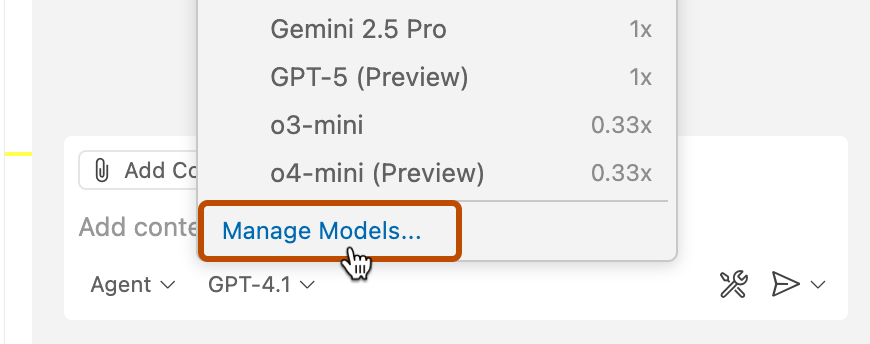
In the Copilot chat view, click the CURRENT-MODEL dropdown menu.
-
Click Manage Models.
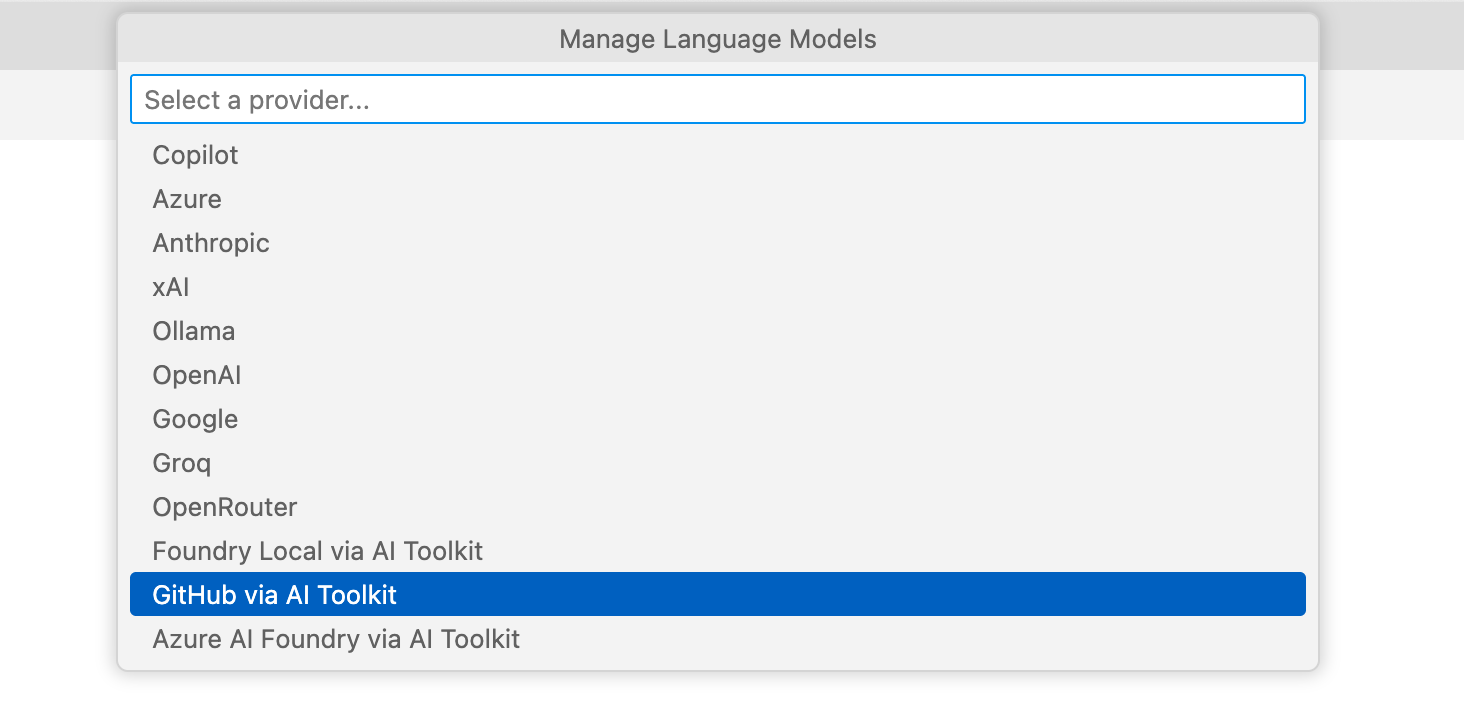
A list of providers is displayed.
If you have installed the AI Toolkit, then additional providers, added via the AI Toolkit, are also listed.
-
Click the provider whose model(s) you want to add.
-
Depending on which provider you selected, you may be prompted to enter a GitHub PAT, an API key for the provider, or a model ID for a specific model.
Enter the required information, then press Enter.
A list of available models is displayed.
-
Select the model(s) you want to add, then click OK.


The models you selected are now available in the model picker in the chat view.
If you added a model from a provider via the AI Toolkit then the first time you use the model, you will be prompted to download it. You may also be prompted to authenticate with the provider.
ヒント
If you're already using chat with auto model selection, you'll need to start a new chat session to switch models. To start a new session, in the top right of the chat view, click new chat.
Changing the AI model
These instructions are for Visual Studio. For instructions on different clients, click the appropriate tab at the top of this page.
To use multi-model Copilot Chat, you must use Visual Studio 2022 version 17.12 or later. See the Visual Studio downloads page.
メモ
Copilot Extensionsを使用すると、選択したモデルがオーバーライドされる可能性があります。
- モデルの実験的なプレリリース バージョンは、パブリック コードと一致する提案をブロックするための設定など、すべてのフィルターと正しく連携しない場合があります (「個々のサブスクライバーとしてのGitHub Copilot ポリシーの管理」をご覧ください)。
- In the Visual Studio menu bar, click View, then click GitHub Copilot Chat.
- In the bottom right of the chat view, select the CURRENT-MODEL dropdown menu, then click the AI model of your choice.
メモ
[自動] を選択すると、Copilot auto model selection可用性に基づいて最適なモデルが選択され、レート制限の削減に役立ちます。 「について Copilotauto model selection」を参照してください。
Changing the AI model
These instructions are for the JetBrains IDEs. For instructions on different clients, click the appropriate tab at the top of this page.
メモ
Copilot Extensionsを使用すると、選択したモデルがオーバーライドされる可能性があります。
- モデルの実験的なプレリリース バージョンは、パブリック コードと一致する提案をブロックするための設定など、すべてのフィルターと正しく連携しない場合があります (「個々のサブスクライバーとしてのGitHub Copilot ポリシーの管理」をご覧ください)。
For reasoning models that support configurable thinking effort, you can control how much reasoning the model applies to each request.
- Click the icon in the status bar.
- In the popup menu, click Open GitHub Copilot Chat.
- In the bottom right of the chat view, select an AI model of your choice from the CURRENT-MODEL dropdown menu.
- Optionally, hover over a reasoning model that supports configurable thinking effort.
- In the Thinking Effort submenu, select an effort level. Nonreasoning models do not display the Thinking Effort submenu.
メモ
[自動] を選択すると、Copilot auto model selection可用性に基づいて最適なモデルが選択され、レート制限の削減に役立ちます。 「について Copilotauto model selection」を参照してください。
ヒント
Model selection is also available when using Copilot through JetBrains AI Assistant. For more information, see JetBrains IDE でのGitHub Copilotの使用.
Changing the AI model
These instructions are for the Eclipse IDE. For instructions on different clients, click the appropriate tab at the top of this page.
メモ
Copilot Extensionsを使用すると、選択したモデルがオーバーライドされる可能性があります。
- モデルの実験的なプレリリース バージョンは、パブリック コードと一致する提案をブロックするための設定など、すべてのフィルターと正しく連携しない場合があります (「個々のサブスクライバーとしてのGitHub Copilot ポリシーの管理」をご覧ください)。
- Click the icon in the status bar.
- In the popup menu, click Open Chat.
- In the bottom right of the chat panel, click the currently selected AI model, then select an alternative model from the popup menu.
メモ
[自動] を選択すると、Copilot auto model selection可用性に基づいて最適なモデルが選択され、レート制限の削減に役立ちます。 「について Copilotauto model selection」を参照してください。
Changing the AI model
These instructions are for Xcode. For instructions on different clients, click the appropriate tab at the top of this page.
To use multi-model Copilot Chat, you must install the GitHub Copilot for Xcode extension. See Installing the GitHub Copilot extension in your environment.
メモ
Copilot Extensionsを使用すると、選択したモデルがオーバーライドされる可能性があります。
- モデルの実験的なプレリリース バージョンは、パブリック コードと一致する提案をブロックするための設定など、すべてのフィルターと正しく連携しない場合があります (「個々のサブスクライバーとしてのGitHub Copilot ポリシーの管理」をご覧ください)。
- To open the chat view, click Editor in the menu bar, then click Copilot then Open Chat. Copilot Chat opens in a new window.
- In the bottom right of the chat view, select the CURRENT-MODEL dropdown menu, then click the AI model of your choice.
メモ
[自動] を選択すると、Copilot auto model selection可用性に基づいて最適なモデルが選択され、レート制限の削減に役立ちます。 「について Copilotauto model selection」を参照してください。
Further reading
- AI language models in VS Code in the Visual Studio Code documentation.