Introduction
This guide describes how to use Copilot Chat and agents to automate coding tasks by breaking them into steps, using tools to read files, edit code, and run commands, and self-correcting when something goes wrong. You can also ask general questions about software development, or specific questions about the code in your project. For more information, see 关于 GitHub Copilot 聊天功能.
To learn how to use Copilot for agent-driven workflows in a desktop app, see GitHub Copilot 应用入门.
Prerequisites
- Access to GitHub Copilot. 请参阅“关于GitHub Copilot”。
- 最新版本的 Visual Studio Code. Visual Studio Code请参阅下载页。
- 在 GitHub 中登录 Visual Studio Code。 如果遇到身份验证问题,请参阅“排除GitHub Copilot的常见故障问题”。
如果您通过您的组织GitHub Copilot或企业,那么当您的组织所有者GitHub Copilot Chat或企业管理员。 请参阅“管理组织中GitHub Copilot的策略和功能”。
Chat modes
You can use Copilot Chat in the following modes:
- Ask mode: to get answers to coding questions and get Copilot to provide code suggestions.
- Agent mode: to get Copilot to autonomously accomplish a set task. See Using agent mode in your IDE.
- Plan mode: to get Copilot to create detailed implementation plans to ensure all requirements are met. See Using plan mode in your IDE.
To switch between modes, use the agents dropdown at the bottom of the chat view.
注意
If you don’t see the Agent option in the mode selector, your enterprise or organization administrator may have disabled agent mode for your IDE.
Using ask mode
Ask mode is optimized for answering questions about your codebase, coding, and general technology concepts. Use ask mode when you want to understand how something works, explore ideas, or get help with coding tasks.
To use ask mode, select Ask from the agents dropdown at the bottom of the chat view, then submit a prompt as described below.
Submitting prompts
You can give the agent a high-level description of what you want to build and it gets to work. Each task runs inside an agent session, a persistent conversation you can track, pause, resume, or hand off to another agent.
-
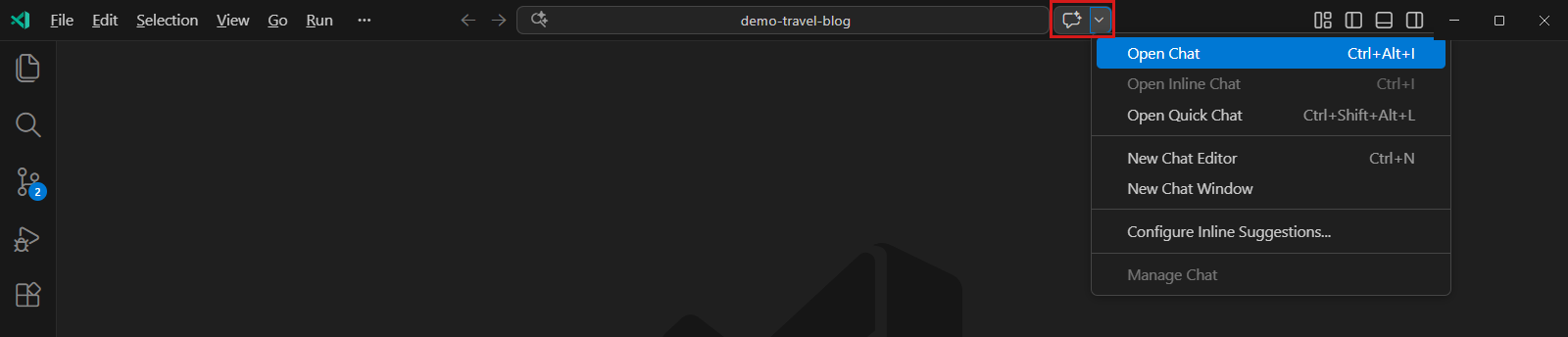
To open the chat view, click the chat icon in the title bar of Visual Studio Code. If the chat icon is not displayed, right-click the title bar and make sure that Command Center is selected.
-
Enter a prompt in the prompt box. For an introduction to the kinds of prompts you can use, see Getting started with prompts for GitHub Copilot Chat in your IDE.
-
Evaluate Copilot's response, and make a follow-up request if needed.
The response may contain text, code blocks, buttons, images, URIs, and file trees. The response often includes interactive elements. For example, the response may include a menu to insert a code block, or a button to invoke a Visual Studio Code command.
To see the files that Copilot Chat used to generate the response, select the Used n references dropdown at the top of the response. The references may include a link to a custom instructions file for your repository. This file contains additional information that is automatically added to all of your chat questions to improve the quality of the responses. For more information, see 为GitHub Copilot添加存储库自定义说明.

Using keywords in your prompt
You can use special keywords to help Copilot understand your prompt. For examples, see Getting started with prompts for GitHub Copilot Chat in your IDE.
Chat participants
Chat participants are like domain experts who have a specialty that they can help you with.
Copilot Chat can infer relevant chat participants based on your natural language prompt, improving discovery of advanced capabilities without you having to explicitly specify the participant you want to use in your prompt.
注意
Automatic inference for chat participants is currently in 公开预览 and is subject to change.
Alternatively, you can manually specify a chat participant to scope your prompt to a specific domain. To do this, type @ in the chat prompt box, followed by a chat participant name.
For a list of available chat participants, type @ in the chat prompt box. See also GitHub Copilot 对话助手 速查表 or Chat participants in the Visual Studio Code documentation.
Slash commands
Use slash commands to avoid writing complex prompts for common scenarios. To use a slash command, type / in the chat prompt box, followed by a command.
To see all available slash commands, type / in the chat prompt box. See also GitHub Copilot 对话助手 速查表 or Slash commands in the Visual Studio Code documentation.
Chat variables
Use chat variables to include specific context in your prompt. To use a chat variable, type # in the chat prompt box, followed by a chat variable.
To see all available chat variables, type # in the chat prompt box. See also GitHub Copilot 对话助手 速查表.
Using GitHub skills for Copilot
Copilot 的特定于 GitHub 的技能扩展了 Copilot 可提供的信息类型。 若要在 Copilot Chat 中访问这些技能,请在问题中包含 @github。
向问题添加 @github 时,Copilot 会根据问题的内容动态选择适当的技能。 此外,还可以明确要求 Copilot Chat 使用某项特定技能。 可通过两种方式实现此目的:
- 使用自然语言要求 Copilot Chat 使用技能。 例如:
@github Search the web to find the latest GPT model from OpenAI. - 若要专门调用 Web 搜索,可以在问题中包含
#web变量。 例如:@github #web What is the latest LTS of Node.js?
可以通过询问 Copilot 来生成当前可用的技能列表:@github What skills are available?
Using Model Context Protocol (MCP) servers
可以使用 MCP 将 Copilot Chat 与各种现有工具和服务集成,从而扩展其功能。 有关更多信息,请参阅“关于模型上下文协议 (MCP)”。
AI models for Copilot Chat
您可以更改 Copilot 用于生成回复的模型。 你可能会发现性能更好的不同模型,或提供更有用响应的模型,具体取决于你提出的问题类型。 可选项包括具备高级功能的高端模型。
Additional ways to access Copilot Chat
In addition to submitting prompts through the chat view, you can submit prompts in other ways:
- Quick chat: To open the quick chat dropdown, enter Shift+Option+Command+L (Mac) / Ctrl+Shift+Alt+L (Windows/Linux).
- Inline: To start an inline chat directly in the editor or integrated terminal, enter Command+i (Mac) / Ctrl+i (Windows/Linux).
- Smart actions: To submit prompts via the context menu, right click in your editor, select Copilot in the menu that appears, then select one of the actions. Smart actions can also be accessed via the sparkle icon that sometimes appears when you select a line of code.
See inline chat, quick chat, and chat smart actions in the Visual Studio Code documentation for more details.
Using images in Copilot Chat
使用支持图像输入的模型时,可以将图像和 PDF 附加到提示。
Copilot 支持以下文件类型:
- JPEG(
.jpg、.jpeg) - PNG (
.png) - GIF(
.gif) - WEBP (
.webp) - PDF (
.pdf) - HEIC (
.heic) - HEIF (
.heif)
例如,可以附加:
- 代码片段的屏幕截图,并要求 Copilot 解释代码。
- 应用程序的用户界面的模拟,并要求 Copilot 生成代码。
- 流程图并要求 Copilot 描述图像中显示的进程。
- 网页的屏幕截图,并要求 Copilot 为类似的页面生成 HTML。
图像和 PDF 附件在所有 Copilot 计划中都可用,默认情况下已启用,无需策略即可打开或关闭该功能。
Attaching images to your chat prompt
-
Do one of the following:
- Copy an image and paste it into the chat view.
- Drag and drop one or more image file from your operating system's file explorer—or from the Explorer in VS Code—into the chat view.
- Right-click an image file in the VS Code Explorer and click Copilot then Add File to Chat.
-
在聊天视图中键入提示以随附图像。 例如:
explain this diagram、describe each of these images in detail、what does this error message mean。
Sharing feedback
To indicate whether a response was helpful, use the thumbs up and thumbs down icons that appear next to the response.
To leave feedback about the GitHub Copilot Chat extension, open an issue in the microsoft/vscode-copilot-release repository.
Further reading
- GitHub Copilot 对话助手的提示设计
- Using Copilot Chat in VS Code in the Visual Studio Code documentation
- 管理智能体会话
- 在GitHub中询问有关GitHub Copilot的问题
- 应用卡片:GitHub Copilot 对话助手
- GitHub 附加产品和功能条款
- GitHub Copilot Trust Center
- GitHub Copilot FAQ
Prerequisites
-
Access to GitHub Copilot. 请参阅“关于GitHub Copilot”。
-
Visual Studio 2022 version 17.8 or later. See Install Visual Studio in the Visual Studio documentation.
- For Visual Studio 17.8 and 17.9:
- GitHub Copilot extension. See Install GitHub Copilot in Visual Studio in the Visual Studio documentation.
- GitHub Copilot Chat extension. See Install GitHub Copilot in Visual Studio in the Visual Studio documentation.
Visual Studio 17.10 and later have the GitHub Copilot and GitHub Copilot Chat extensions built in. You don't need to install them separately.
- For Visual Studio 17.8 and 17.9:
-
Sign in to GitHub in Visual Studio. If you experience authentication issues, see 排除GitHub Copilot的常见故障问题.
如果您通过您的组织GitHub Copilot或企业,那么当您的组织所有者GitHub Copilot Chat或企业管理员。 请参阅“管理组织中GitHub Copilot的策略和功能”。
Chat modes
Visual Studio supports the following chat modes:
- Ask mode: Get answers and guidance without making changes to your code.
- Agent mode: Give Copilot a high-level task and allow it to edit code, run commands, and iterate on the results. See Using agent mode in your IDE.
To switch between modes, use the mode dropdown at the bottom of the chat panel. Chat modes are available in Visual Studio 17.14 and later.
Using ask mode
Use ask mode when you want Copilot to explain code, answer a question, or suggest an approach without modifying your project.
To use ask mode, select Ask from the mode dropdown at the bottom of the chat panel, then submit a prompt as described below.
Submitting prompts
You can ask Copilot Chat to give you code suggestions, explain code, generate unit tests, and suggest code fixes.
-
In the Visual Studio menu bar, click View, then click GitHub Copilot Chat.
-
In the Copilot Chat window, enter a prompt, then press Enter. For example prompts, see Getting started with prompts for GitHub Copilot Chat in your IDE.
-
Evaluate Copilot's response, and submit a follow up prompt if needed.
The response often includes interactive elements. For example, the response may include buttons to copy, insert, or preview the result of a code block.
To see the files that Copilot Chat used to generate the response, click the References link below the response. The references may include a link to a custom instructions file for your repository. This file contains additional information that is automatically added to all of your chat questions to improve the quality of the responses. For more information, see 为GitHub Copilot添加存储库自定义说明.
Using keywords in your prompt
You can use special keywords to help Copilot understand your prompt.
Slash commands
Use slash commands to avoid writing complex prompts for common scenarios. To use a slash command, type / in the chat prompt box, followed by a command.
To see all available slash commands, type / in the chat prompt box. See also GitHub Copilot 对话助手 速查表 or Slash commands in the Visual Studio documentation.
References
By default, Copilot Chat will reference the file that you have open or the code that you have selected. You can also use # followed by a file name, file name and line numbers, or solution to reference a specific file, lines, or solution.
See also GitHub Copilot 对话助手 速查表 or Reference in the Visual Studio documentation.
Using GitHub skills for Copilot (preview)
注意
The @github chat participant is currently in preview, and only available in Visual Studio 2022 Preview 2 onwards.
Copilot's GitHub-specific skills expand the type of information Copilot can provide. To access these skills in Copilot Chat in Visual Studio, include @github in your question.
When you add @github to a question, Copilot dynamically selects an appropriate skill, based on the content of your question. You can also explicitly ask Copilot Chat to use a particular skill. For example, @github Search the web to find the latest GPT4 model from OpenAI.
You can generate a list of currently available skills by asking Copilot: @github What skills are available?
Using Model Context Protocol (MCP) servers
可以使用 MCP 将 Copilot Chat 与各种现有工具和服务集成,从而扩展其功能。 有关更多信息,请参阅“关于模型上下文协议 (MCP)”。
AI models for Copilot Chat
您可以更改 Copilot 用于生成回复的模型。 你可能会发现性能更好的不同模型,或提供更有用响应的模型,具体取决于你提出的问题类型。 可选项包括具备高级功能的高端模型。
Additional ways to access Copilot Chat
In addition to submitting prompts through the chat window, you can submit prompts inline. To start an inline chat, right click in your editor window and select Ask Copilot.
See Ask questions in the inline chat view in the Visual Studio documentation for more details.
Using images in Copilot Chat
使用支持图像输入的模型时,可以将图像和 PDF 附加到提示。
Copilot 支持以下文件类型:
- JPEG(
.jpg、.jpeg) - PNG (
.png) - GIF(
.gif) - WEBP (
.webp) - PDF (
.pdf) - HEIC (
.heic) - HEIF (
.heif)
例如,可以附加:
- 代码片段的屏幕截图,并要求 Copilot 解释代码。
- 应用程序的用户界面的模拟,并要求 Copilot 生成代码。
- 流程图并要求 Copilot 描述图像中显示的进程。
- 网页的屏幕截图,并要求 Copilot 为类似的页面生成 HTML。
图像和 PDF 附件在所有 Copilot 计划中都可用,默认情况下已启用,无需策略即可打开或关闭该功能。
Attaching images to your chat prompt
-
If you see the AI model picker at the bottom right of the chat view, select one of the models that supports adding images to prompts:
-
Do one of the following:
- Copy an image and paste it into the chat view.
- Click the paperclip icon at the bottom right of the chat view, click Upload Image, browse to the image file you want to attach, select it and click Open.
You can add multiple images if required.
-
Type your prompt into the chat view to accompany the image. For example,
explain this image, ordescribe each of these images in detail.
Sharing feedback
To share feedback about Copilot Chat, you can use the Send feedback button in Visual Studio. For more information on providing feedback for Visual Studio, see the Visual Studio Feedback documentation.
-
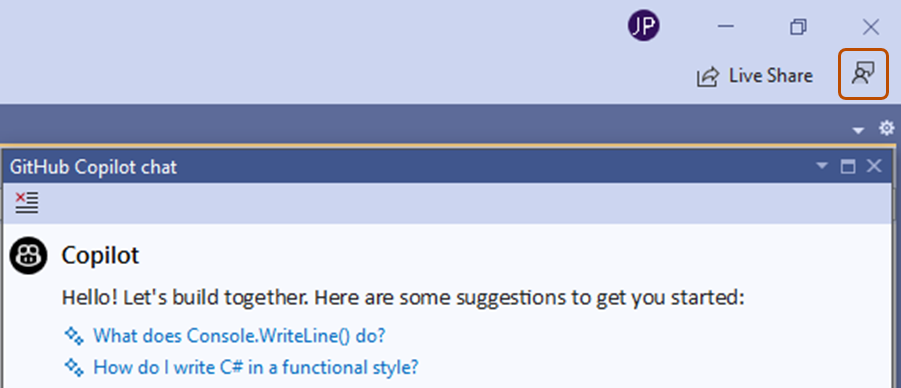
In the top right corner of the Visual Studio window, click the Send feedback button.
-
Choose the option that best describes your feedback.
- To report a bug, click Report a problem.
- To request a feature, click Suggest a feature.

Further reading
- GitHub Copilot 对话助手的提示设计
- Using GitHub Copilot Chat in Visual Studio in the Microsoft Learn documentation
- Tips to improve GitHub Copilot Chat results in the Microsoft Learn documentation
- 在GitHub中询问有关GitHub Copilot的问题
- 应用卡片:GitHub Copilot 对话助手
- GitHub 附加产品和功能条款
- GitHub Copilot Trust Center
- GitHub Copilot FAQ
Prerequisites
-
Access to GitHub Copilot. 请参阅“关于GitHub Copilot”。
-
Compatible JetBrains IDE. GitHub Copilot is compatible with the following IDEs:
- IntelliJ IDEA(旗舰版、社区版、教育版)
- Android Studio
- CLion
- Code With Me 来宾
- DataGrip
- DataSpell
- GoLand
- JetBrains 客户端
- MPS
- PhpStorm
- PyCharm(专业版、社区版、教育版)
- Rider
- RubyMine
- RustRover
- WebStorm
请参阅 JetBrains IDE 工具查找器进行下载。
-
最新版本的 GitHub Copilot 扩展。 请在 JetBrains Marketplace 中查看GitHub Copilot插件。 有关安装说明,请参阅“Installing the GitHub Copilot extension in your environment”。
-
登录到 GitHub JetBrains IDE。 有关身份验证说明,请参阅“Installing the GitHub Copilot extension in your environment”。
如果您通过您的组织GitHub Copilot或企业,那么当您的组织所有者GitHub Copilot Chat或企业管理员。 请参阅“管理组织中GitHub Copilot的策略和功能”。
Chat modes
The agent picker in the Copilot Chat panel lets you choose which agent drives your conversation. To switch agents, use the Agents dropdown at the bottom of the chat panel.
The following agents are available:
- Agent mode (default): Full agentic experience with autonomous task execution. See Using agent mode in your IDE.
- Ask mode: Get quick answers and assistance without making code changes.
- Plan mode: Collaborate on planning before implementation—Copilot analyzes your request and builds a structured plan for your review. See Using plan mode in your IDE.
- Edit mode: Make controlled edits across multiple files that you review and accept individually.
- Copilot CLI: Runs Copilot through Copilot CLI, providing a terminal-first agentic experience with support for multiple isolation modes, live session progress, and tool call visibility. For more information, see 关于 GitHub Copilot CLI.
- Custom agents: Use personalized agents tailored to your specific needs. See Using custom agents in your IDE.
Copilot Edits lets you make changes across multiple files directly from a single Copilot Chat prompt, using edit mode and agent mode.
提示
You can also access Copilot from JetBrains AI Assistant without installing the Copilot plugin. For more information, see 在 JetBrains IDE 中使用GitHub Copilot.
Using edit mode
编辑模式仅在 Visual Studio Code 和 JetBrains IDE 中可用。
希望对 Copilot 建议的编辑进行更精细的控制时,请使用编辑模式。 在编辑模式下,选择 Copilot 可以更改的文件,在每次迭代时为 Copilot 提供上下文,并确定是否在每次迭代后接受建议的编辑。
编辑模式最适用于以下用例:
- 你希望对一组定义的文件进行快速、特定的更新。
- 你希望完全控制 Copilot 使用的 LLM 请求数。
- To start an edit session, click Copilot in the menu bar, then select Open GitHub Copilot Chat.
- At the top of the chat panel, click Copilot Edits.
- Add relevant files to the working set to indicate to GitHub Copilot which files you want to work on. You can add all open files by clicking Add all open files or individually search for single files.
- Submit a prompt. In response to your prompt, Copilot Edits determines which files in your working set to change and adds a short description of the change.
- Review the changes and Accept or Discard the edits for each file.
Submitting prompts
You can ask Copilot Chat to give you code suggestions, explain code, generate unit tests, and suggest code fixes.
-
Open the Copilot Chat window by clicking the GitHub Copilot Chat icon at the right side of the JetBrains IDE window.

-
Enter a prompt in the prompt box. For example prompts, see Getting started with prompts for GitHub Copilot Chat in your IDE.
-
Evaluate Copilot's response, and submit a follow up prompt if needed.
The response often includes interactive elements. For example, the response may include buttons to copy or insert a code block.
To see the files that Copilot Chat used to generate the response, click the References link below the response. The references may include a link to a custom instructions file for your repository. This file contains additional information that is automatically added to all of your chat questions to improve the quality of the responses. For more information, see 为GitHub Copilot添加存储库自定义说明.

Supplementing your prompt
You can use slash commands and file references to help Copilot understand your what you are asking it to do.
Slash commands
Use slash commands to avoid writing complex prompts for common scenarios. To use a slash command, type / in the chat prompt box, followed by a command.
To see all available slash commands, type / in the chat prompt box. See also GitHub Copilot 对话助手 速查表.
File references
By default, Copilot Chat will reference the file that you have open or the code that you have selected. You can also tell Copilot Chat which files to reference by dragging a file into the chat prompt box. Alternatively, you can right click on a file, select GitHub Copilot, then select Reference File in Chat.
Using GitHub skills for Copilot
Copilot 的特定于 GitHub 的技能扩展了 Copilot 可提供的信息类型。 若要在 Copilot Chat 中访问这些技能,请在问题中包含 @github。
向问题添加 @github 时,Copilot 会根据问题的内容动态选择适当的技能。 此外,还可以明确要求 Copilot Chat 使用某项特定技能。 可通过两种方式实现此目的:
- 使用自然语言要求 Copilot Chat 使用技能。 例如:
@github Search the web to find the latest GPT model from OpenAI. - 若要专门调用 Web 搜索,可以在问题中包含
#web变量。 例如:@github #web What is the latest LTS of Node.js?
可以通过询问 Copilot 来生成当前可用的技能列表:@github What skills are available?
Using Model Context Protocol (MCP) servers
可以使用 MCP 将 Copilot Chat 与各种现有工具和服务集成,从而扩展其功能。 有关更多信息,请参阅“关于模型上下文协议 (MCP)”。
AI models for Copilot Chat
您可以更改 Copilot 用于生成回复的模型。 你可能会发现性能更好的不同模型,或提供更有用响应的模型,具体取决于你提出的问题类型。 可选项包括具备高级功能的高端模型。
Additional ways to access Copilot Chat
- Built-in requests. In addition to submitting prompts through the chat window, you can submit built-in requests by right clicking in a file, selecting GitHub Copilot, then selecting one of the options.
- Inline. You can submit a chat prompt inline, and scope it to a highlighted code block or your current file.
- To start an inline chat, right click on a code block or anywhere in your current file, hover over GitHub Copilot, then select Copilot: Inline Chat, or enter Ctrl+Shift+I.
Sharing feedback
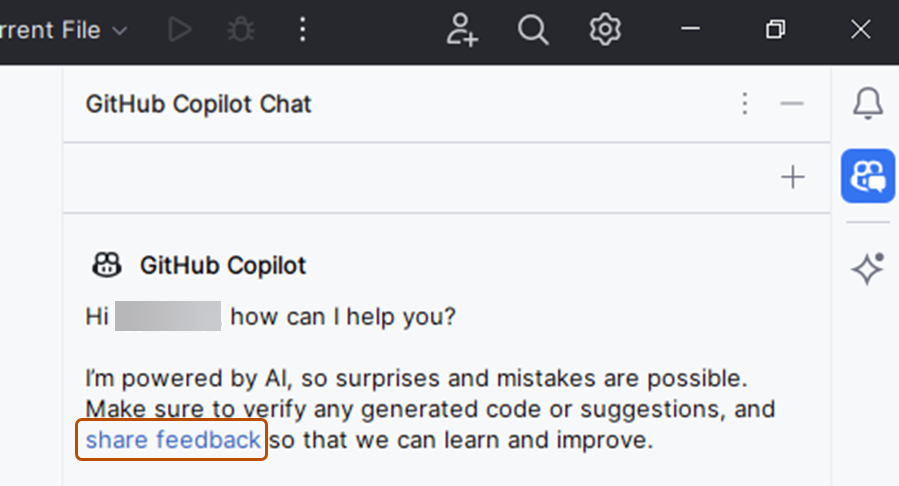
To share feedback about Copilot Chat, you can use the share feedback link in JetBrains.
-
At the right side of the JetBrains IDE window, click the Copilot Chat icon to open the Copilot Chat window.
-
At the top of the Copilot Chat window, click the share feedback link.

Further reading
Prerequisites
- Access to GitHub Copilot. 请参阅“关于GitHub Copilot”。
- Latest version of the GitHub Copilot extension. For installation instructions, see Installing the GitHub Copilot extension in your environment.
- Sign in to GitHub in Xcode.
如果您通过您的组织GitHub Copilot或企业,那么当您的组织所有者GitHub Copilot Chat或企业管理员。 请参阅“管理组织中GitHub Copilot的策略和功能”。
Chat modes
You can use Copilot Chat in agent mode to autonomously accomplish a set task, or in plan mode to draft an implementation plan before any code changes are made. To switch between modes, use the agents dropdown at the bottom of the chat window.
- For agent mode, see Using agent mode in your IDE.
- For plan mode, see Using plan mode in your IDE.
Submitting prompts
You can ask Copilot Chat to give you code suggestions, explain code, generate unit tests, and suggest code fixes.
-
To open the chat window, click Editor in the menu bar, then click GitHub Copilot then Open Chat. Copilot Chat opens in a new window.
-
Enter a prompt in the prompt box. For example prompts, see Getting started with prompts for GitHub Copilot Chat in your IDE.
-
Evaluate Copilot's response, and submit a follow up prompt if needed.
The response often includes interactive elements. For example, the response may include buttons to copy or insert a code block.
To see the files that Copilot Chat used to generate the response, click the References link below the response. The references may include a link to a custom instructions file for your repository. This file contains additional information that is automatically added to all of your chat questions to improve the quality of the responses. For more information, see 为GitHub Copilot添加存储库自定义说明.
Using Model Context Protocol (MCP) servers
可以使用 MCP 将 Copilot Chat 与各种现有工具和服务集成,从而扩展其功能。 有关更多信息,请参阅“关于模型上下文协议 (MCP)”。
AI models for Copilot Chat
您可以更改 Copilot 用于生成回复的模型。 你可能会发现性能更好的不同模型,或提供更有用响应的模型,具体取决于你提出的问题类型。 可选项包括具备高级功能的高端模型。
Using keywords in your prompt
You can use special keywords to help Copilot understand your prompt.
Slash commands
Use slash commands to avoid writing complex prompts for common scenarios. To use a slash command, type / in the chat prompt box, followed by a command.
To see all available slash commands, type / in the chat prompt box. For more information, see GitHub Copilot 对话助手 速查表.
File references
By default, Copilot Chat will reference the file that you have open or the code that you have selected. To attach a specific file as reference, click in the chat prompt box.
Chat management
You can open a conversation thread for each Xcode IDE to keep discussions organized across different contexts. You can also revisit previous conversations and reference past suggestions through the chat history.
Sharing feedback
To indicate whether a response was helpful, use or that appear next to the response.
Further reading
Prerequisites
- 对 Copilot 的访问权限****。 请参阅“关于GitHub Copilot”。
- 兼容的 Eclipse 版本****。 若要使用 GitHub Copilot 扩展,必须拥有 Eclipse 版本 2024-09 或更高版本。 请参阅 Eclipse 下载页。
- 如果你是具有 Copilot Business 或 Copilot Enterprise 计划的组织或企业的成员,则必须启用“MCP servers in Copilot”策略才能将 MCP 与 Copilot 配合使用。
- Latest version of the GitHub Copilot extension. Download this from the Eclipse Marketplace. For more information, see Installing the GitHub Copilot extension in your environment.
- Sign in to GitHub in Eclipse.
如果您通过您的组织GitHub Copilot或企业,那么当您的组织所有者GitHub Copilot Chat或企业管理员。 请参阅“管理组织中GitHub Copilot的策略和功能”。
Chat modes
You can use Copilot Chat in agent mode to autonomously accomplish a set task, or in plan mode to draft an implementation plan before any code changes are made. To switch between modes, use the agents dropdown at the bottom of the chat panel.
- For agent mode, see Using agent mode in your IDE.
- For plan mode, see Using plan mode in your IDE.
Submitting prompts
You can ask Copilot Chat to give you code suggestions, explain code, generate unit tests, and suggest code fixes.
-
To open the Copilot Chat panel, click the Copilot icon () in the status bar at the bottom of Eclipse, then click Open Chat.
-
Enter a prompt in the prompt box, then press Enter.
For an introduction to the kinds of prompts you can use, see Getting started with prompts for GitHub Copilot Chat in your IDE.
-
Evaluate Copilot's response, and make a follow up request if needed.
Using keywords in your prompt
You can use special keywords to help Copilot understand your prompt. For examples, see Getting started with prompts for GitHub Copilot Chat in your IDE.
Slash commands
Use slash commands to avoid writing complex prompts for common scenarios. To use a slash command, type / in the chat prompt box, followed by a command. For example, use /explain to ask Copilot to explain the code in the file currently displayed in the editor.
To see all available slash commands, type / in the chat prompt box.
Using Model Context Protocol (MCP) servers
可以使用 MCP 将 Copilot Chat 与各种现有工具和服务集成,从而扩展其功能。 有关更多信息,请参阅“关于模型上下文协议 (MCP)”。
AI models for Copilot Chat
您可以更改 Copilot 用于生成回复的模型。 你可能会发现性能更好的不同模型,或提供更有用响应的模型,具体取决于你提出的问题类型。 可选项包括具备高级功能的高端模型。